Visual Studio Code
Visual Studio Code is an excellent Free and Built Open Source IDE that speeds up any software development nowadays. It runs everywhere. The main four feature are:
- IntelliSense
- Run and Debug
- Built-in Git
- Extensions
Manual way
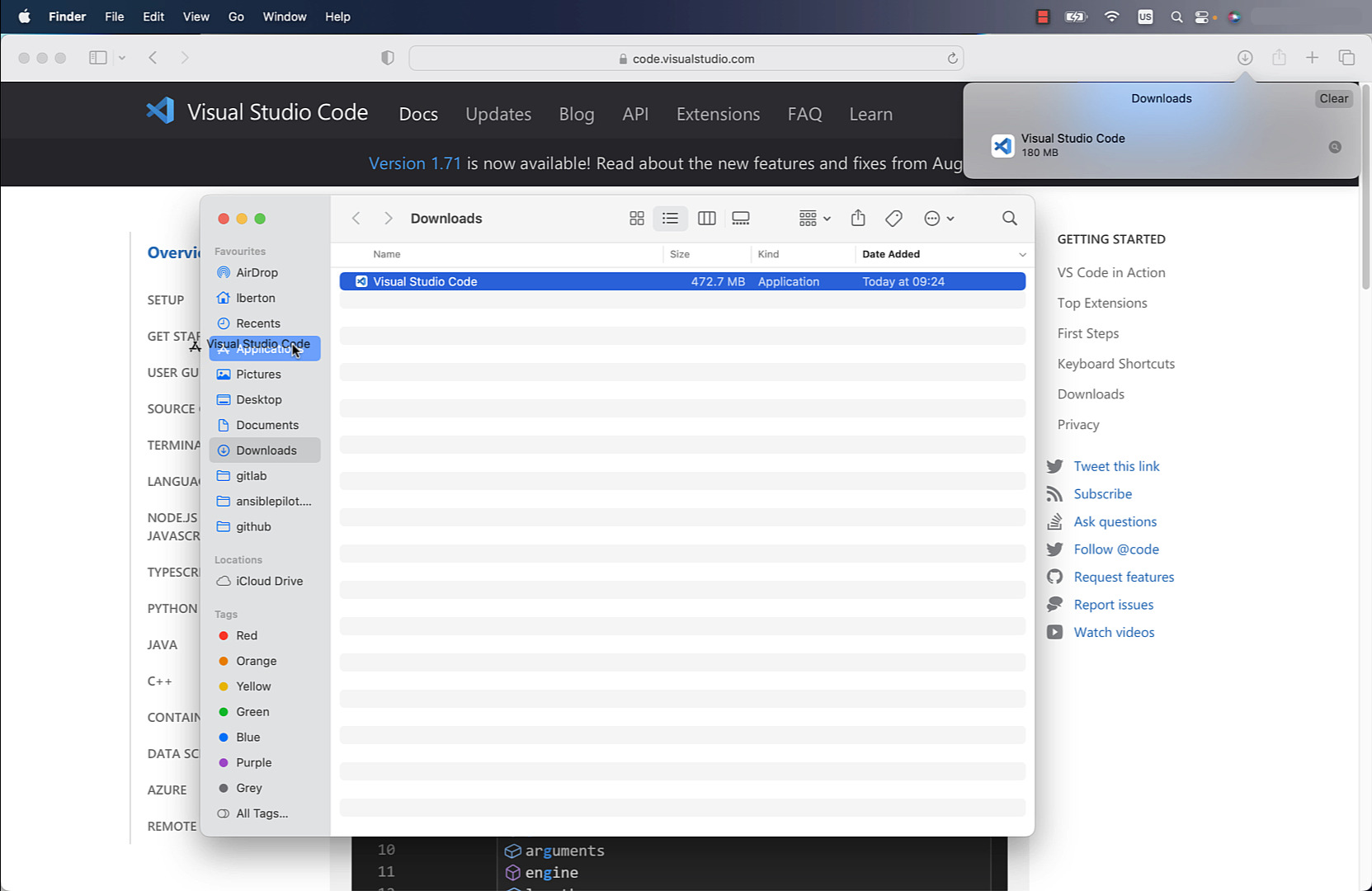
Manually download and install from the official website https://code.visualstudio.com/.
- Pro: easy for new users
- Cons: time-consuming to upgrade, time-consuming for multiple machines to install and upgrade
Homebrew way
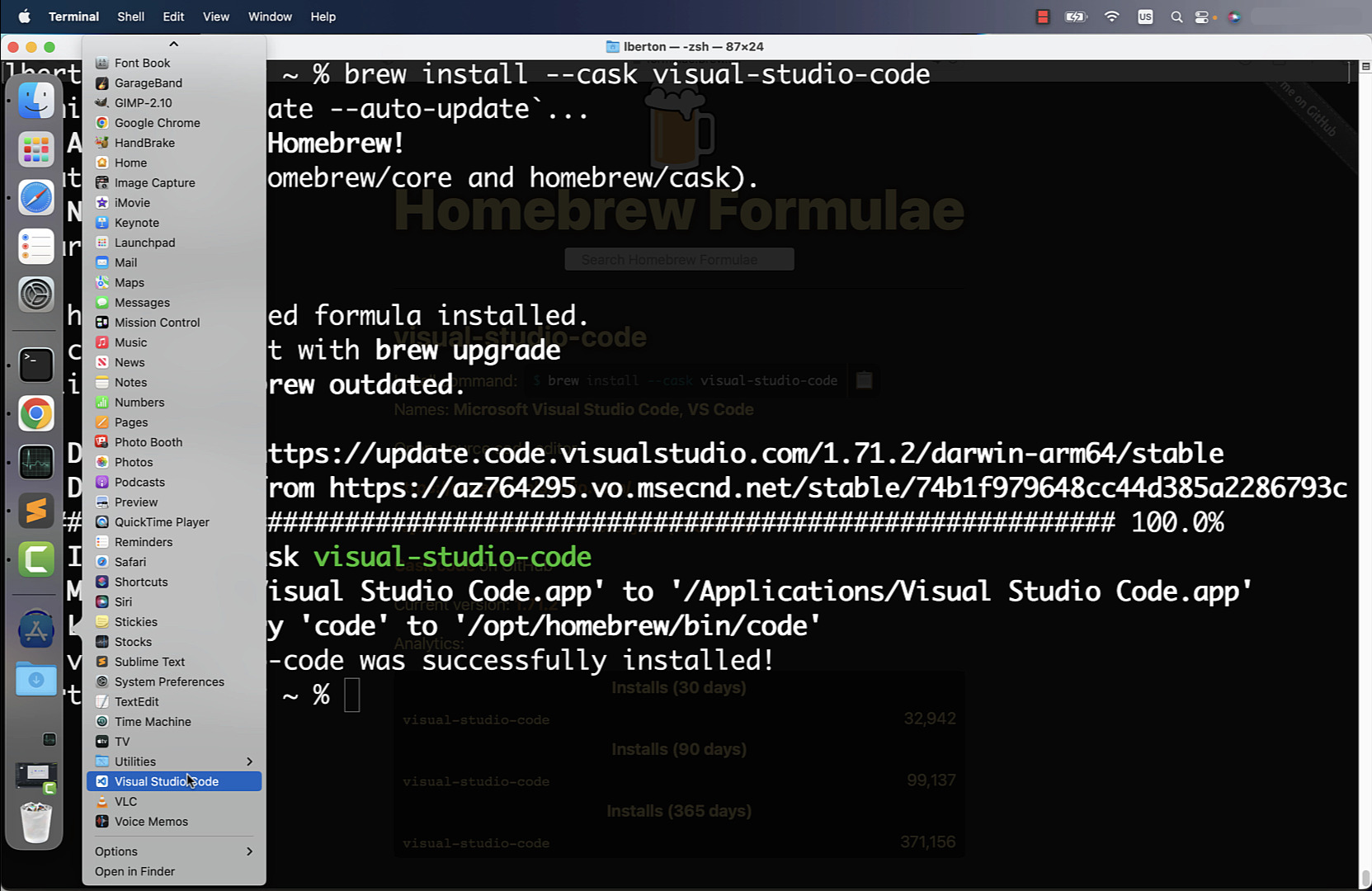
Using the Homebrew package manager, you can easily search and install the visual-studio-code package.
- Pro: fast install and upgrade
- Cons: require Terminal skill, time-consuming for multiple machines installation and upgrade
Ansible way
Using Ansible, you can quickly deploy an Ansible Playbook to install the visual-studio-code package via Homebrew.
- Pro: fast install and upgrade, unlock parallel multiple machine installation
- Cons: require Terminal skill
code
- install-visualstudiocode.yml
``yaml
---
- name: install Visual Studio Code Mac Universal
hosts: all
tasks:
- name: install visual-studio-code
community.general.homebrew:
name: visual-studio-code
state: latest
update_homebrew: true
`
- inventory
`ini
localhost ansible_connection=local
`
execution
There is currently a bug in the module report, but it successfully installs Visual Studio Code.
``bash
lberton@Lucas-MBP macos % ansible-playbook -i inventory install-visualstudiocode.yml
PLAY [install Visual Studio Code Mac Universal] *
TASK [Gathering Facts] **
[WARNING]: Platform darwin on host localhost is using the discovered Python
interpreter at /opt/homebrew/bin/python3.10, but future installation of another Python
interpreter could change the meaning of that path. See
https://docs.ansible.com/ansible-
core/2.13/reference_appendices/interpreter_discovery.html for more information.
ok: [localhost]
TASK [community.general.homebrew] *
fatal: [localhost]: FAILED! => {"changed": false, "msg": ""}
PLAY RECAP
localhost : ok=1