Introduction
In the ever-evolving landscape of automation, creating customized solutions becomes paramount. Ansible Automation Hub provides a platform to showcase and share these custom creations with the world. In this guide, we’ll walk you through the process of crafting your custom Ansible Collection, named “test.test,” and publishing it on Ansible Automation Hub.
Links
- Ansible Automation Hub
- https://docs.ansible.com/ansible/latest/dev_guide/developing_collections.html
Step by step
1. Create the Custom Collection
Begin your journey by creating the “test.test” collection using the ansible-galaxy command-line utility:
ansible-galaxy collection init test.test
You’ll receive a confirmation that the “test.test” collection has been successfully created.
- Collection test.test was created successfully
The command generates the following directory tree in the current directory:
.
└── test
    └── test
        ├── docs
        ├── galaxy.yml
        ├── meta
        │   └── runtime.yml
        ├── plugins
        │   └── README.md
        ├── README.md
        └── roles

6 directories, 4 files
2. Customize the Collection Content
Navigate into the collection directory and modify the “runtime.yml” file located at “test/test/meta/runtime.yml”. You can customize by adding additional modules, plugins, roles, etc.
Here, set the “requires_ansible” parameter to specify the minimum Ansible version required:
---
# Collections must specify a minimum required ansible version to upload
# to galaxy
requires_ansible: '>=2.9.10'
3. Build the Ansible Artifact
The following command creates the “test-test-1.0.0.tar.gz” archive that we can publish in Automation Hub. Generate the “test-test-1.0.0.tar.gz” archive using the following command:
ansible-galaxy collection build
Upon execution, the generated archive is ready to be published on Automation Hub.
Created collection for test.test at /home/luca/collection/test/test/test-test-1.0.0.tar.gz
4. Create a Namespace
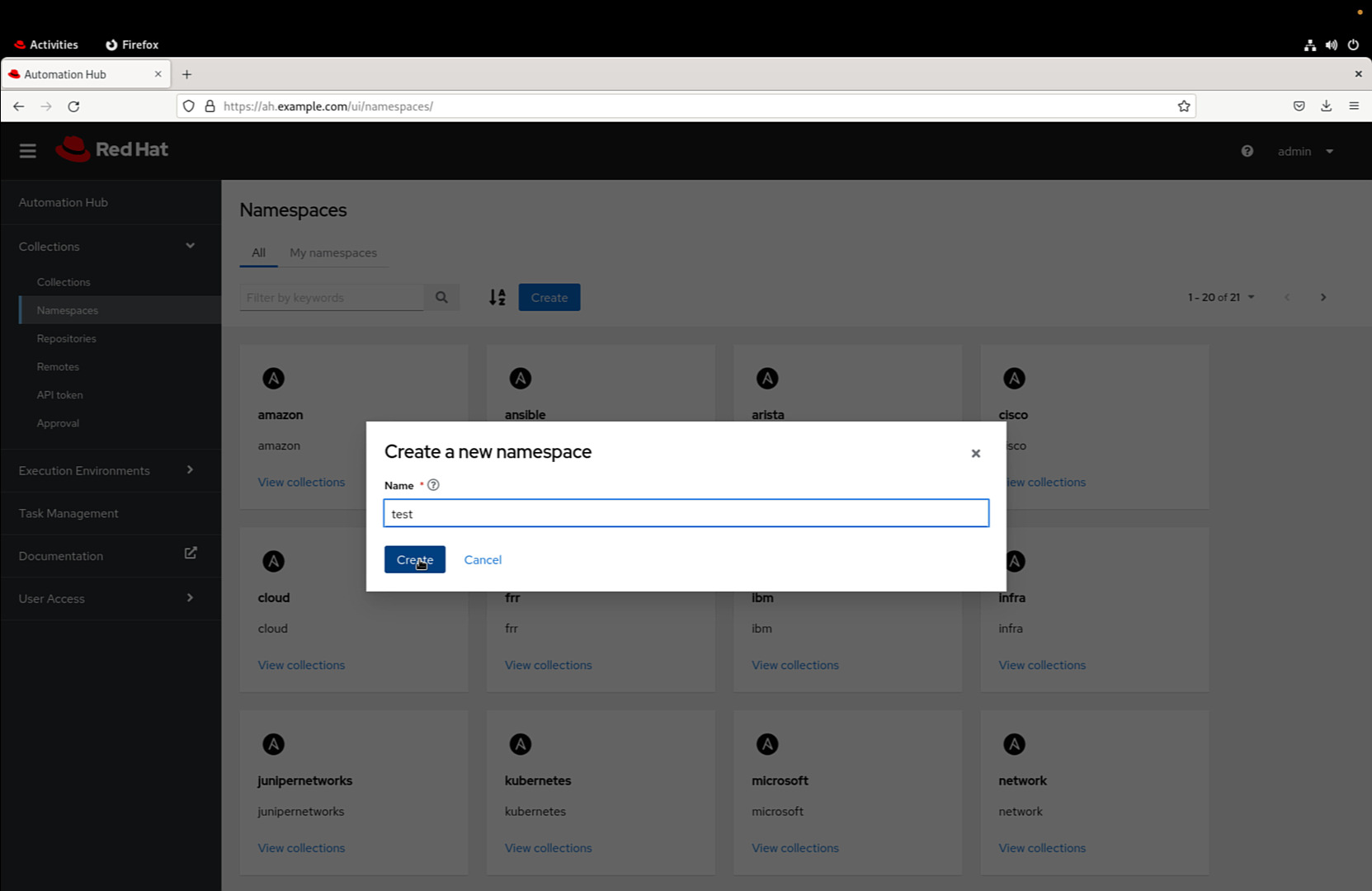
Access the Automation Hub interface and navigate to Collections > Namespace > Create. Enter “test” as the namespace name. Create the “test” namespace via the Collections > Namespace > Create menu and insert the “test” in the name pop-up window as shown in the following Figure:
5. Create the Collection
Within the newly created namespace, select the “Upload collection” button. Proceed by uploading the “test-test-1.0.0.tar.gz” file, created earlier with the ansible-galaxy command. Inside the namespace, select the “Upload collection” button to populate the “test.test” collection with the generated file.
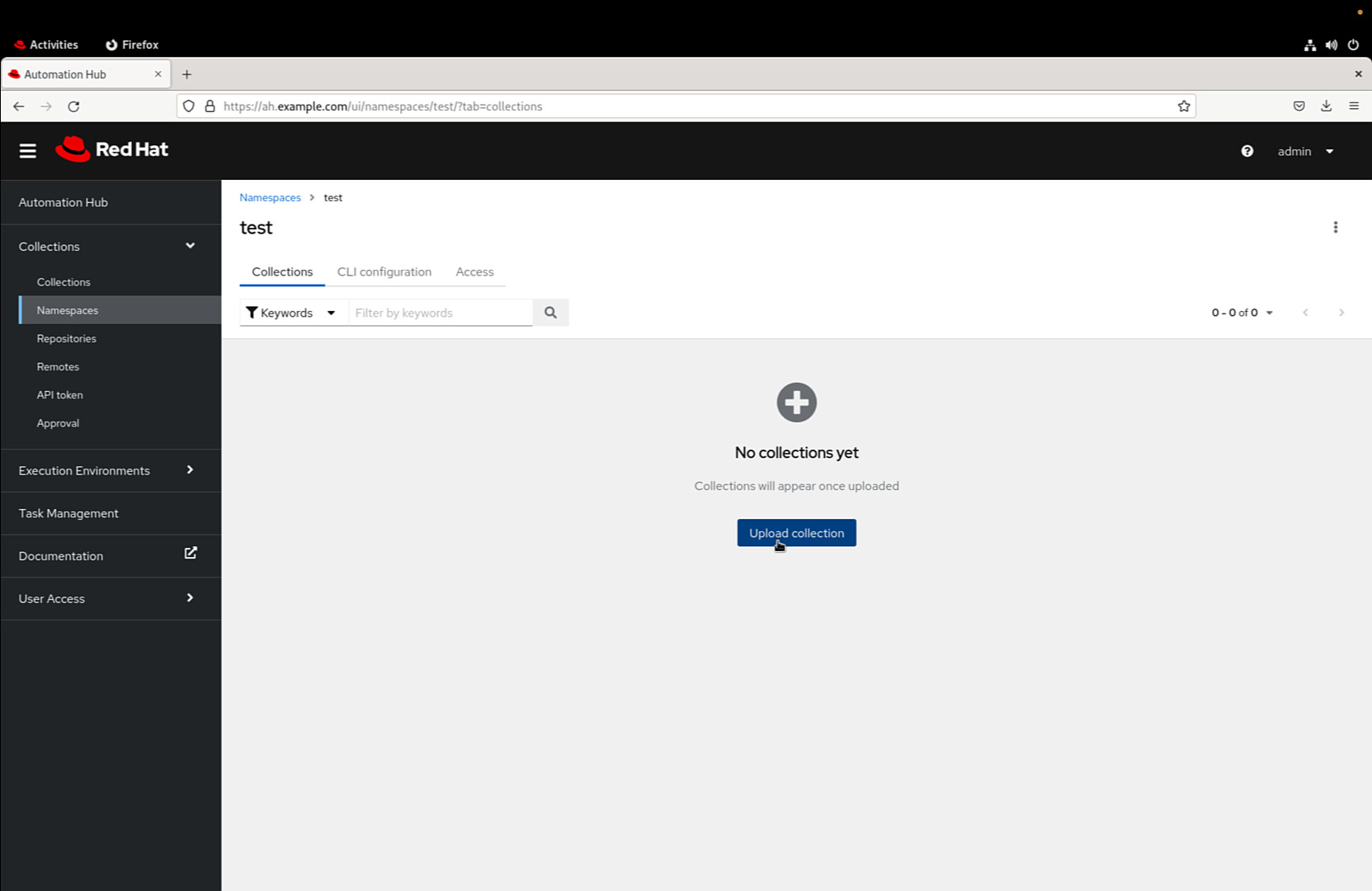
Upload the “test-test-1.0.0.tar.gz” file generated by the ansible-galaxy command.

An automatic procedure is going to check the correctness of our artifact.

Now the “test.test” collection is in the “staging” area.

6. Approval Process
At this point, your “test.test” collection resides in the “staging” area. Automation Hub administrators hold the power to approve or reject it. Admins can navigate to Collections > Approval to make their decisions. An Automation Hub administrator can approve or reject the “test.test” collection in the staging area using the Collections > Approval menu as shown in the following Figure.

7. Publish and Share
With approval granted, your “test.test” collection is now available for usage in the “published” repository. Share this accomplishment with the Ansible community, and let your creation empower automation enthusiasts worldwide.

Once approved, the “test.test” collection is available for usage in the “published” repository.
Conclusion
Creating and publishing your custom Ansible Collection on Automation Hub signifies your dedication to innovation and collaboration. It’s an opportunity to make a lasting impact on the automation landscape while joining a community that thrives on creativity. Start your journey today, and let your custom collection pave the way for smarter automation solutions. The world of automation thrives on collective innovation. Your journey doesn’t end here — it’s an ongoing exploration of what’s possible when technology, collaboration, and imagination converge. So, let your custom collection be a beacon of inspiration, guiding others to harness the potential of automation and drive meaningful change in their endeavors. Start crafting, sharing, and creating your automation legacy today!